Get your credentials
Before configuring any AI client, you need three credentials from your AquilaX account. These are passed as HTTP headers with every MCP request - they are never stored on the MCP server.
Sign in at aquilax.ai and navigate to:
https://aquilax.ai/app/dashboard/pages/settings/account
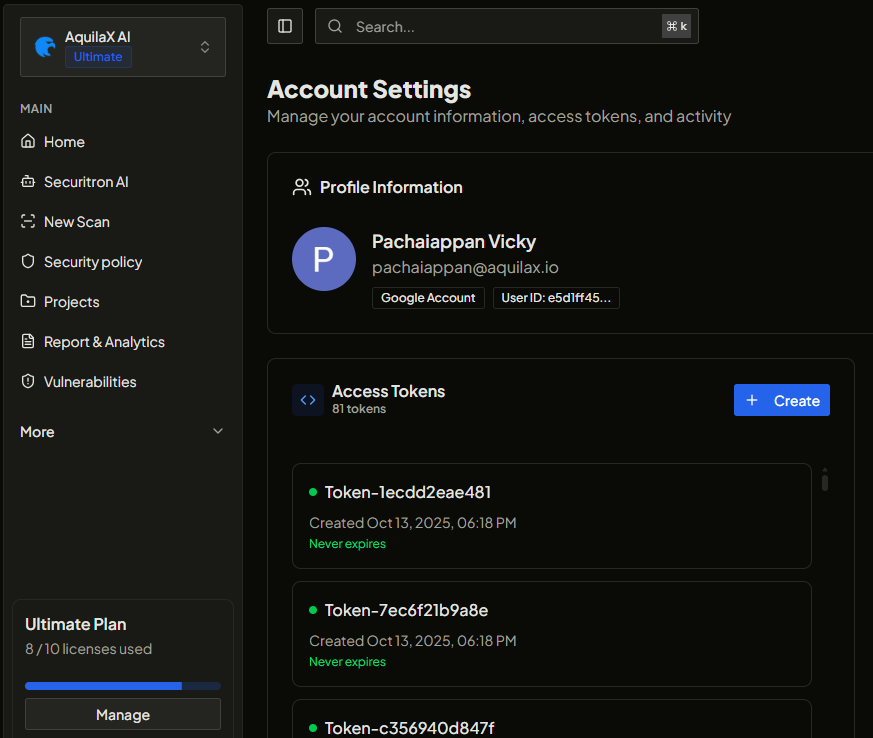
| Credential | Header | Where to find it |
|---|---|---|
| API Key | X-AX-Key | API Settings section - click Generate API Key if you don't have one yet |
| Organization ID | X-AX-Org | Organization settings page, or visible in the URL when viewing your org |
| Group ID | X-AX-Group | Group settings page, or visible in the URL when viewing a group |
Connect in under a minute
The AquilaX MCP server is fully hosted - no installation, no Docker, no infrastructure. Point your AI client at the URL below and pass your credentials as HTTP headers.
After connecting, your AI assistant sees all AquilaX security tools automatically - no manual tool selection needed. Just talk.
Configure your AI client
AquilaX MCP uses Streamable HTTP transport - supported natively by all modern AI clients. Select yours below for the exact configuration snippet.
Claude Desktop uses the mcp-remote bridge, run automatically via npx - no installation needed.
Config file: macOS: ~/Library/Application Support/Claude/claude_desktop_config.json · Windows: %APPDATA%\Claude\claude_desktop_config.json
Claude Code (CLI) supports HTTP transport natively via CLI command or JSON config.
Edit ~/.cursor/mcp.json (global) or .cursor/mcp.json in your project root. Or: Settings → Cursor Settings → MCP → Add new MCP server.
.cursor/mcp.json to .gitignore - never commit credentials to version control.Config: macOS/Linux: ~/.codeium/windsurf/mcp_config.json · Windows: %USERPROFILE%\.codeium\windsurf\mcp_config.json
Use env interpolation to keep secrets out of config files.
Create or edit .vscode/mcp.json in your workspace. VS Code securely prompts for each credential on first use - no secrets stored in the file.
Edit ~/.continue/config.yaml. MCP tools are only available in Agent Mode.
Open Settings (Cmd+, / Ctrl+,) and add to your settings.json. Or use the Agent Panel (✨) → Settings → Add Custom Server.
Connect AquilaX via the Codex Settings → MCP Servers UI, or edit ~/.codex/config.toml directly. Both methods work — use whichever you prefer.
Option A · Add via the MCP Servers UI
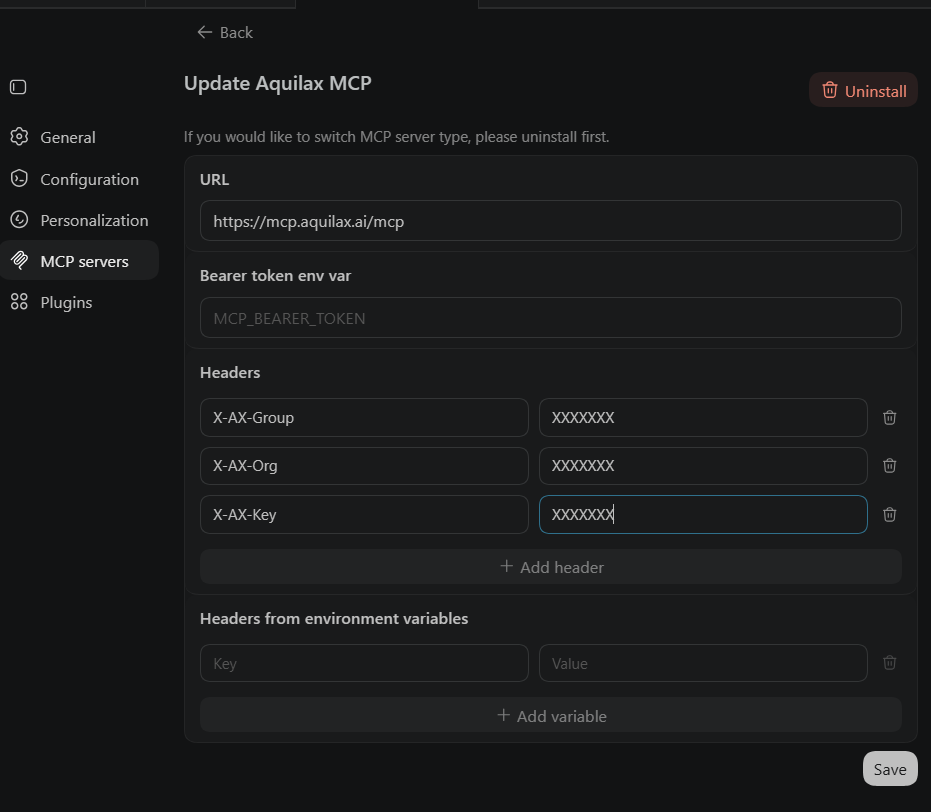
https://mcp.aquilax.ai/mcp as the URL and add your three headers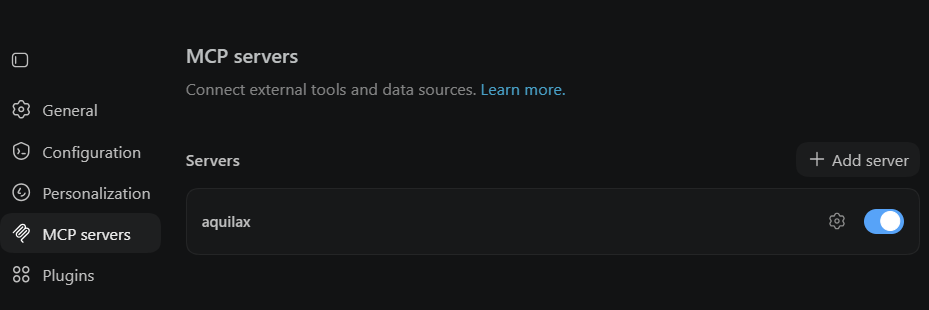
Option B · Edit config.toml directly
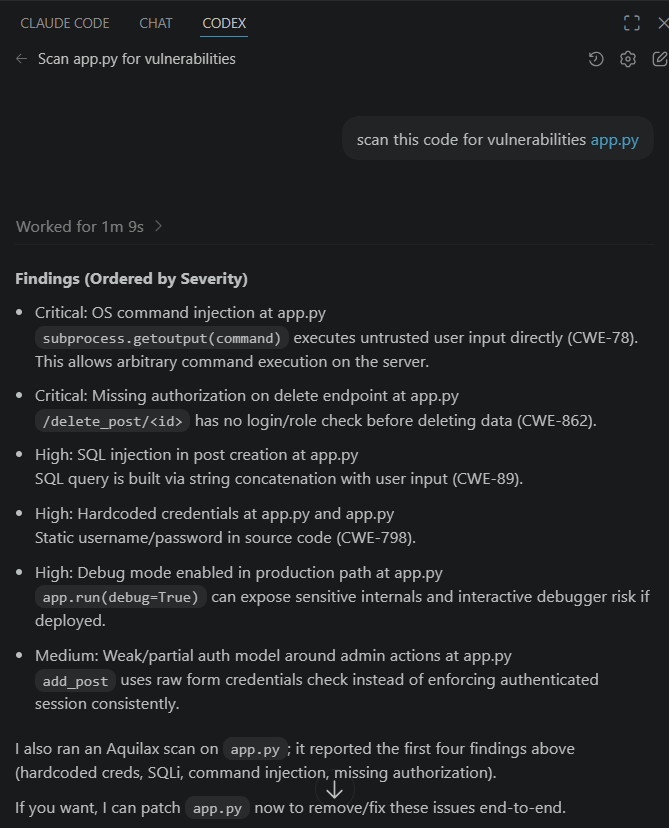
codex in your terminal — AquilaX tools are available immediately in every session.① Codex runs the AquilaX scan automatically
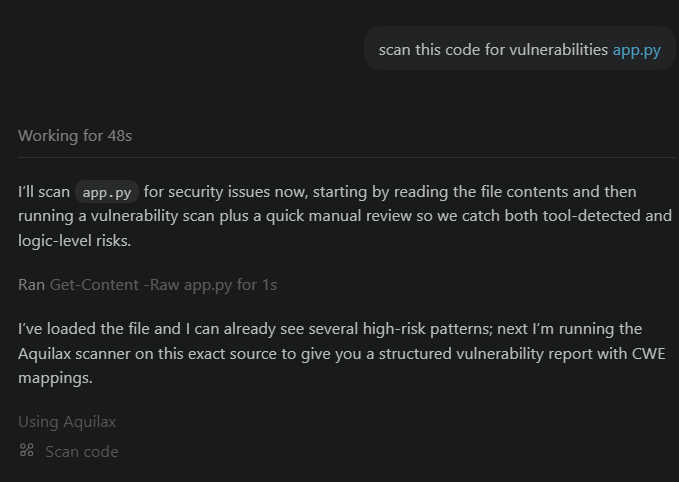
scan_code tool automatically — no manual tool selection② Findings returned ordered by severity
12 security tools, invoked automatically
AquilaX exposes a suite of purpose-built security tools via MCP. Your AI assistant reads the tool descriptions and calls the right one based on your natural language request - no manual selection needed.
List all organizations your account belongs to. Used as the first step before listing groups or vulnerabilities.
List groups within an organization along with their metadata and IDs.
List the projects (repositories) in a group - name, ID, Git URL, and default branch. Handy for picking a repo to scan.
Your whole workspace in one call - identity, current org & group, plan, role, security policy, scanned projects, and notifications.
Trigger a full repository security scan by supplying a Git URL. Returns a scan ID to track progress.
Check the real-time status, progress, and result summary of a running or completed scan.
Scan a code snippet or file contents immediately for SAST vulnerabilities, secrets, and insecure patterns.
List all findings with optional filters by severity, status, scanner type, or scan ID.
A compact report for a single scan - repo & commit metadata, lines/files scanned, and findings aggregated by severity, scanner, status, and CWE.
Pre-aggregated security posture for a group - totals, severity & per-scanner breakdowns, and true/false-positive rates, compared against 30 days ago.
Generate an AI-powered, context-aware secure code replacement for a specific finding using Securitron AI. Returns a drop-in fix ready to apply.
Search the AquilaX product documentation and FAQ knowledge base to answer "what is" and "how do I" product questions.
Example prompts
Once connected, describe what you need in plain English. Your AI assistant automatically selects and chains the correct AquilaX tools.
Scan this file for security issues
→ scan_code · analyzes snippet, returns findings with severity and remediation
List all critical vulnerabilities in my project
→ list_organizations → list_groups → list_vulnerabilities(severity: critical)
Fix this SQL injection vulnerability
→ fix_vulnerability(finding_id) · Securitron AI generates a secure, drop-in code block
Start a scan on my repo github.com/myorg/myapp
→ start_scan(git_uri) · triggers a full repo scan, returns scan ID
Show me all high-severity findings from the last scan
→ get_scan_status → list_vulnerabilities(severity: high)
What security issues are in this function?
→ scan_code · inline snippet scanning - SAST, secrets, dependency risks
How secure is my project? Give me an executive overview
→ get_security_summary · totals, severity & scanner breakdown, trend vs 30 days ago
Who am I, what plan am I on, and what's my security policy?
→ get_account_context · identity, current org & group, plan, role, policy
Summarize what scan ax-9f3c found
→ get_scan_report(scanId) · repo metadata + findings by severity, scanner, CWE
Which repositories can I scan? How do I add a scanner?
→ list_projects · repos with Git URLs · → search_docs · product docs & FAQ
Stateless. Secure. Zero credential storage.
Credentials are passed per-request via HTTP headers - they never touch the MCP server's storage. The server is fully stateless with respect to authentication. Every request is validated directly against the AquilaX API.
| Header | Required | Description |
|---|---|---|
| X-AX-Key | Required | Your AquilaX API key from the account settings page |
| X-AX-Org | Recommended | Default Organization ID for all tool calls. If omitted, your AI must call list_organizations to discover it first. |
| X-AX-Group | Recommended | Default Group ID for all tool calls. Can also be passed as a tool parameter per-call. |
list_organizations and list_groups on the first relevant request.
Transport options
AquilaX MCP supports the modern Streamable HTTP transport (recommended) and legacy SSE for backward compatibility. The server is hosted at https://mcp.aquilax.ai.
| Method | Path | Transport | Description |
|---|---|---|---|
POST |
/mcp | Recommended | Streamable HTTP - modern MCP transport for all clients |
GET |
/mcp | Recommended | Streamable HTTP SSE notifications stream |
GET |
/sse | Legacy SSE | SSE event stream for backward compatibility |
POST |
/messages | Legacy SSE | Message endpoint for legacy SSE sessions |
GET |
/health | HTTP | Health check - returns {"status":"ok"} |
Inspect the MCP server
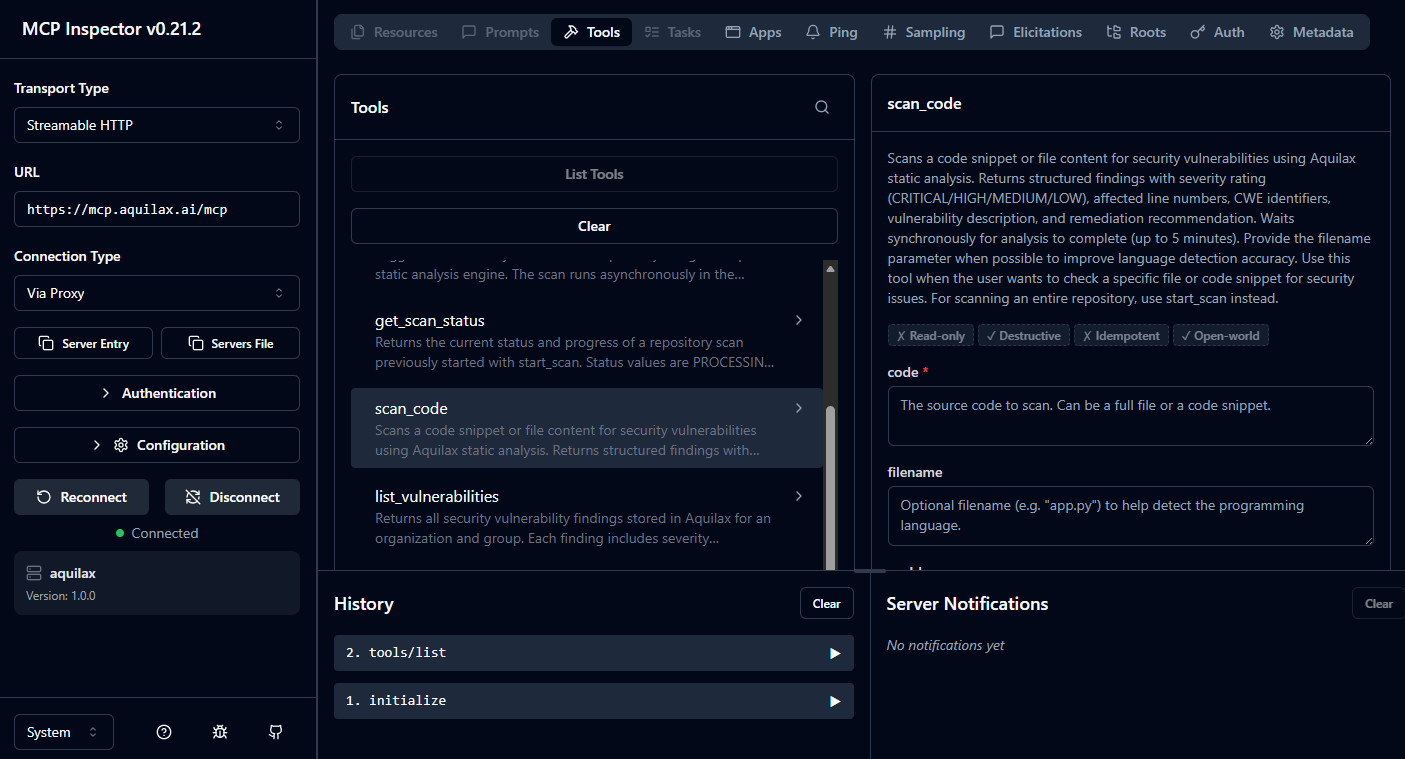
The MCP Inspector is a browser-based UI for browsing and testing all AquilaX MCP tools interactively - useful for validating your credentials, understanding tool schemas, and debugging before connecting an AI client.
- Click Headers or Connection Settings in the toolbar
- Add header
X-AX-Key→ your AquilaX API key - Add header
X-AX-Org→ your Organization ID - Add header
X-AX-Group→ your Group ID - Click Connect - all 12 AquilaX tools appear in the sidebar
- Click any tool, fill in parameters, and click Run to test it live
Security best practices
.gitignore: .cursor/mcp.json, .claude/settings.local.json, .codex/config.toml
Use environment variables where supported
Additional recommendations
- Use project-scoped MCP config files in shared repos - instruct each team member to add their own credentials locally
- Rotate your API key regularly from the AquilaX account settings page
- Your API key grants access to all resources your user account can access - use the minimum necessary org/group scope
- For VS Code users: the
${input:...}pattern prompts for secrets at runtime so nothing is stored on disk
Add security to your AI workflow
in under a minute.
Get your API key, add two lines of config to Claude, Cursor, or any MCP client, and start scanning - no infrastructure, no installation.